Last updated: August 21, 2026
For the full list of AI crawlers with their user agents and whether blocking each one costs you AI-search visibility, see the AI crawler list.
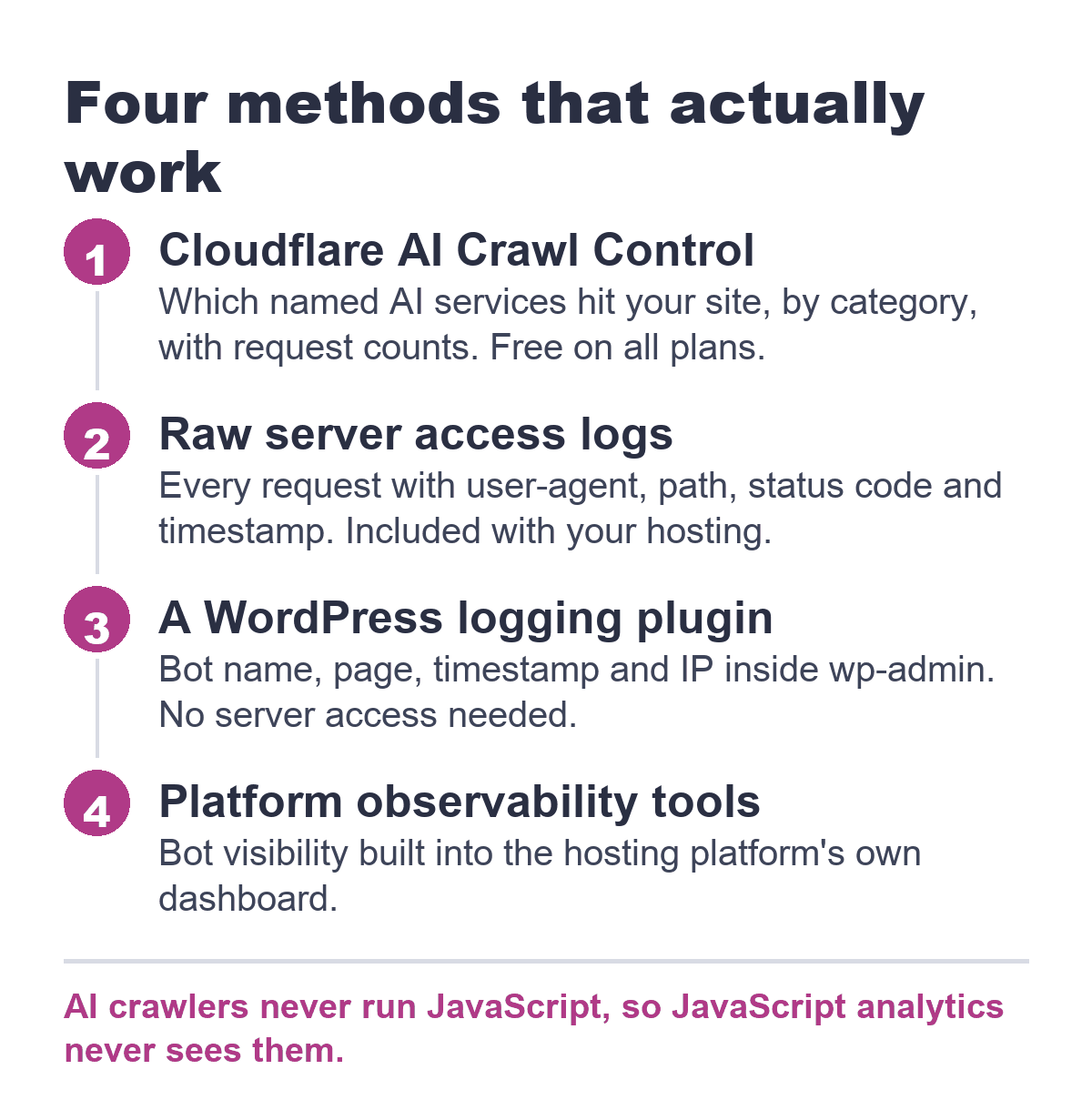
To track AI crawler activity on your website, you need server-side data because AI crawlers never run the JavaScript that analytics tools depend on. The four working methods are Cloudflare’s AI Crawl Control, raw server access logs from your hosting platform, a WordPress logging plugin, and your hosting platform’s observability tools. The tool most marketers reach for first doesn’t work here.
If you want to see which AI services are reading your site, Google Analytics is the wrong tool. GA4 automatically filters out all known bot traffic, including every major AI crawler. That filtering cannot be turned off, and GA4 won’t even tell you how much it removed. Worse, the measurement code that GA4 relies on fires through JavaScript in a browser. AI crawlers fetch raw HTML without executing JavaScript, so no GA4 event is ever sent in the first place. The data you need was never collected.
That means you need a different tool entirely. Not a GA4 setting to change, not a custom report, but something that watches your server’s raw requests or uses a purpose-built dashboard. The good news: you have several straightforward options, and none of them require a developer. Monitoring is the feedback loop of AI search readiness, telling you whether AI systems actually reach and use your content.
Why Google Analytics Can’t See This
GA4’s bot exclusion is deliberate. The platform matches incoming traffic against Google’s own research plus the IAB/ABC International Spiders and Bots List, then drops it silently. You will never see a GPTBot session in your acquisition reports, no matter how many pages it fetches. And even if GA4 didn’t filter bots, the underlying measurement model wouldn’t work. Crawlers don’t render JavaScript, so the gtag snippet never runs. The request hits your server, the server returns HTML, and the bot moves on. GA4 sees nothing because nothing was fired.
For a marketer, this creates a blind spot. You might be cited in an AI-generated answer right now, and your analytics platform would show zero evidence. Monitoring AI crawler activity requires looking at the server side, where every request leaves a footprint.
People who click through from an assistant are a separate measure. GA4 can show those visits, and how to see ChatGPT traffic in Google Analytics covers where to find them.
Turning Log Data Into a Monitoring Habit
Once you have a data source (Cloudflare dashboard, raw logs, a plugin, or Vercel Observability), the goal is not to stare at it daily. It’s to check on a cadence for three specific changes.
- New bots that weren’t there before. The list of AI crawlers is growing. If a new bot appears and starts hitting your site, you want to know what category it belongs to. A new training bot may not matter. A new agent bot from a service your buyers use does.
- A spike in agent/retrieval hits on a specific page. If your technical datasheet suddenly gets a burst of ChatGPT-User fetches, something is driving questions about that product. Maybe a competitor launched a comparison. Maybe a trade publication wrote about the category. The spike is the signal. The cause is what you investigate next.
- A bot that disappears after appearing regularly. If OAI-SearchBot was hitting your blog weekly and then stops for a month, something changed. Your content might have been deindexed from ChatGPT’s search corpus, or the bot’s crawling pattern shifted. Either way, the absence is worth a look.
A reasonable cadence for most industrial and manufacturing sites is once a week. Check your Cloudflare dashboard or run a quick search on your logs for the major user-agent strings. Look for the three patterns above. If you’re using the WordPress plugin, glance at the latest entries.
If during your check you see a pattern of failed requests (403s, 429s, or missing responses) rather than successful crawls, that’s not a monitoring problem. That’s a configuration or blocking problem, and it calls for a different kind of investigation. Our post on failed AI crawl attempts walks through diagnosing why a bot might be unable to reach your content.
The Fast Path: Cloudflare AI Crawl Control (If You’re on Cloudflare)
If your site sits behind Cloudflare, you already have a free dashboard that shows exactly which AI services are accessing your content. Cloudflare’s AI Crawl Control (previously called AI Audit) works on all plans, including Free, with no setup required. It groups crawlers into categories and shows request counts for each named bot. For the full bot-by-bot breakdown of these categories, see our guide to checking which AI bots can access your website.
The categories, available to all customers as of July 1, 2026, are:
- Search: Bots that index content to surface your site in AI search results. Examples include OAI-SearchBot and Claude-SearchBot.
- Agent: Bots that fetch a specific page in real time because a live user asked a question. Examples include ChatGPT-User, Claude-User, and Perplexity-User.
- Training: Bots that collect content to train or fine-tune a model. Examples include GPTBot, ClaudeBot, and PerplexityBot.
The distinction matters. A Search hit means your content might show up when someone asks a question later. An Agent hit means someone is asking about a topic your page covers right now, and the AI is pulling your page live to answer. That is a direct signal of relevance, not a background scrape.
Cloudflare is also changing the defaults. Starting September 15, 2026, new domains with ad-supported pages will have Training and Agent bots blocked by default, while Search bots remain allowed. If you’re already on Cloudflare, you should know the policy shift is coming. (If you want to adjust your own blocking configuration, that’s covered in our post on blocking AI crawlers via robots.txt and CDN rules; this guide is about reading the data.)
Reading Your Raw Server Logs (No Cloudflare Needed)
Not on Cloudflare? Your web server keeps a record of every request it receives, called an access log. Each line includes the IP address, timestamp, HTTP method, the path requested, the status code returned, the referrer, and most importantly, the user-agent string. The user-agent string is a text label the bot sends to identify itself. These bots identify themselves by name in their user-agent strings, so you can find them by searching your logs for those names.
Raw logs give you the most granular view possible: every hit, every path, every response code. The tradeoff is that you need to know where your host stores the logs and how to read them. Retention varies, and you’ll need to filter manually.
Here’s where to find logs on two common industrial/manufacturing hosting platforms:
- SiteGround: Go to Site Tools > Statistics > Access Log. You’ll see the latest 300 entries with IP, timestamp, request type, URI, status code, referrer, and user agent. Older logs up to 30 days are stored in a per-domain logs folder, accessible through File Manager, FTP, or SSH.
- Kinsta: In MyKinsta, go to Sites > [your site] > Logs tab. You’ll get a searchable log viewer with hostname, client IP, UTC timestamp, HTTP method/URI, status code, user agent, and referrer. Logs are retained for up to 4 days and cannot be manually cleared.
If your logs show errors or missing responses instead of successful crawls, that’s a different problem. See our post on diagnosing failed AI crawl attempts. That’s a one-time troubleshooting exercise; this post is about building an ongoing monitoring habit.
Which Monitoring Method Fits You
| Method | What It Shows | Cost | Difficulty |
|---|---|---|---|
| Cloudflare AI Crawl Control | Which named AI services hit your site, by category (Search/Agent/Training), with request counts | Free on all plans | Low: dashboard, no setup |
| Raw server access logs (SiteGround/Kinsta) | Every request, including AI bot hits, with user-agent string, path, status code, timestamp | Included in hosting | Medium: requires knowing where logs live and reading user-agent strings; short retention on some hosts |
| WordPress plugin (e.g. LLM Bot Tracker) | Bot name, page, timestamp, IP, inside wp-admin, no log or server access needed | Free (check for premium tiers) | Low: install and read a dashboard |
| Vercel Observability (Edge Requests) | Bot/AI-crawler breakdown for sites hosted on Vercel | Free tier included | Low |
| GA4 | Nothing for crawlers: bots are filtered out by design and never fire JavaScript anyway | N/A | N/A: this is explicitly the wrong tool |
A WordPress Plugin Option
If you want a dashboard inside wp-admin without touching server logs or a CDN, the plugin “LLM Bot Tracker” by Hueston does exactly that. It logs AI bot visits across roughly 59 named bots, including GPTBot, ChatGPT-User, ClaudeBot, PerplexityBot, and Perplexity-User. For each visit, it records the bot name, the page fetched, the timestamp, and the IP address. The data appears in a simple list inside your WordPress admin.
This is the lowest-effort path for a WordPress site. Install it, and you’ll start seeing which AI services are hitting which pages, with zero server access required. The plugin is free, with over 900 active installs at the time of writing. As with any plugin, check for premium tiers if you need extended features.
If You’re on Vercel
For sites hosted on Vercel, bot visibility is built into the platform’s Observability tools. Under Observability > Edge Requests, Vercel breaks out individual bots and bot categories, including AI crawlers. You get a clear view of which services are making requests, along with request counts. Vercel also offers a managed “AI bots” ruleset if you later decide to control access. The visibility features are available on the free tier.
What “Normal” AI Crawl Activity Looks Like
Every major AI crawler operator sorts its bots into the same functional categories, whether they use Cloudflare’s terminology or not. Understanding these categories turns a log line from a technical artifact into a business signal. The agent and retrieval bots are the ones that matter most for immediate visibility. ChatGPT-User, Claude-User, and Perplexity-User fetch a specific page in real time because a live user asked a question that the AI can’t answer from its training data alone. The bot visits a single URL at the moment of the query, pulls the content, and uses it to formulate a response. When you see a ChatGPT-User hit on your pricing page or a technical specification page, someone is actively asking about what you sell or make, and the AI is reading your content to answer them. That is not scraping. That is being cited, right now, in a conversation you’re not part of.
This is the money insight for a marketer. A retrieval bot hit on a product page is a live signal that your content is relevant to a real person’s question. Monitoring those hits over time tells you which pages are earning citations, which topics are driving AI interest, and where your visibility is rising or falling. The data is not abstract. It’s a leading indicator of whether your brand is showing up when buyers ask AI tools for recommendations. Ongoing monitoring gives you that signal; a full AI Visibility Audit tells you whether those citations are actually turning into brand mentions, recommendations, and traffic.
Why doesn’t Google Analytics show AI crawler traffic?
GA4 automatically excludes traffic from known bots and spiders using Google’s own research and the IAB/ABC International Spiders and Bots List. That filtering cannot be disabled. Additionally, GA4 measurement code fires via JavaScript in the browser, while crawlers fetch raw HTML without executing JavaScript, so no GA4 event is ever sent. The data is invisible to GA4 by design.
How do I know if my site is actually being cited by ChatGPT or Perplexity, not just scraped for training?
Look for agent/retrieval bot hits: ChatGPT-User, Claude-User, or Perplexity-User. These bots only fetch a page when a user’s question triggers a live retrieval. A hit from one of these bots means your content was read in response to a real person’s query, which is a direct signal of being cited. Training bot hits alone do not indicate citation.
Where do I find my website’s raw server logs if I’m on SiteGround or Kinsta?
On SiteGround, go to Site Tools > Statistics > Access Log for the latest 300 entries; older logs up to 30 days are in a per-domain logs folder via File Manager, FTP, or SSH. On Kinsta, go to MyKinsta > Sites > [your site] > Logs tab for a searchable viewer; logs are retained for up to 4 days.
Is there a WordPress plugin that tracks AI bot visits without touching server logs?
Yes. “LLM Bot Tracker” (by Hueston) logs AI bot visits for roughly 59 named bots, including GPTBot, ChatGPT-User, ClaudeBot, and Perplexity’s bots. It records bot name, page, timestamp, and IP inside wp-admin, requiring no server or log access.
Monitoring tells you that AI services are reading your content. The AI Visibility Audit tells you whether that reading is turning into actual citations and recommendations in the tools your buyers use. If you’re seeing agent bot hits on key pages, the next step is measuring what those hits produce.