Last updated: August 21, 2026
For the full list of AI crawlers with their user agents and whether blocking each one costs you AI-search visibility, see the AI crawler list.
A blocked crawler is a failure at the reach layer of AI search readiness.
Can you see failed AI crawl attempts against your site?
Most failed AI crawl attempts are visible, but only after the crawler actually sent a request. The evidence shows up in server or error logs, in a CDN or web application firewall security event log, or in an AI-crawler-specific dashboard as a refused request. The more difficult case is the one that never creates a log entry anywhere. A compliant AI crawler that reads your robots.txt file, the site file that asks crawlers not to fetch certain paths, and obeys a Disallow instruction never asks for the page at all.
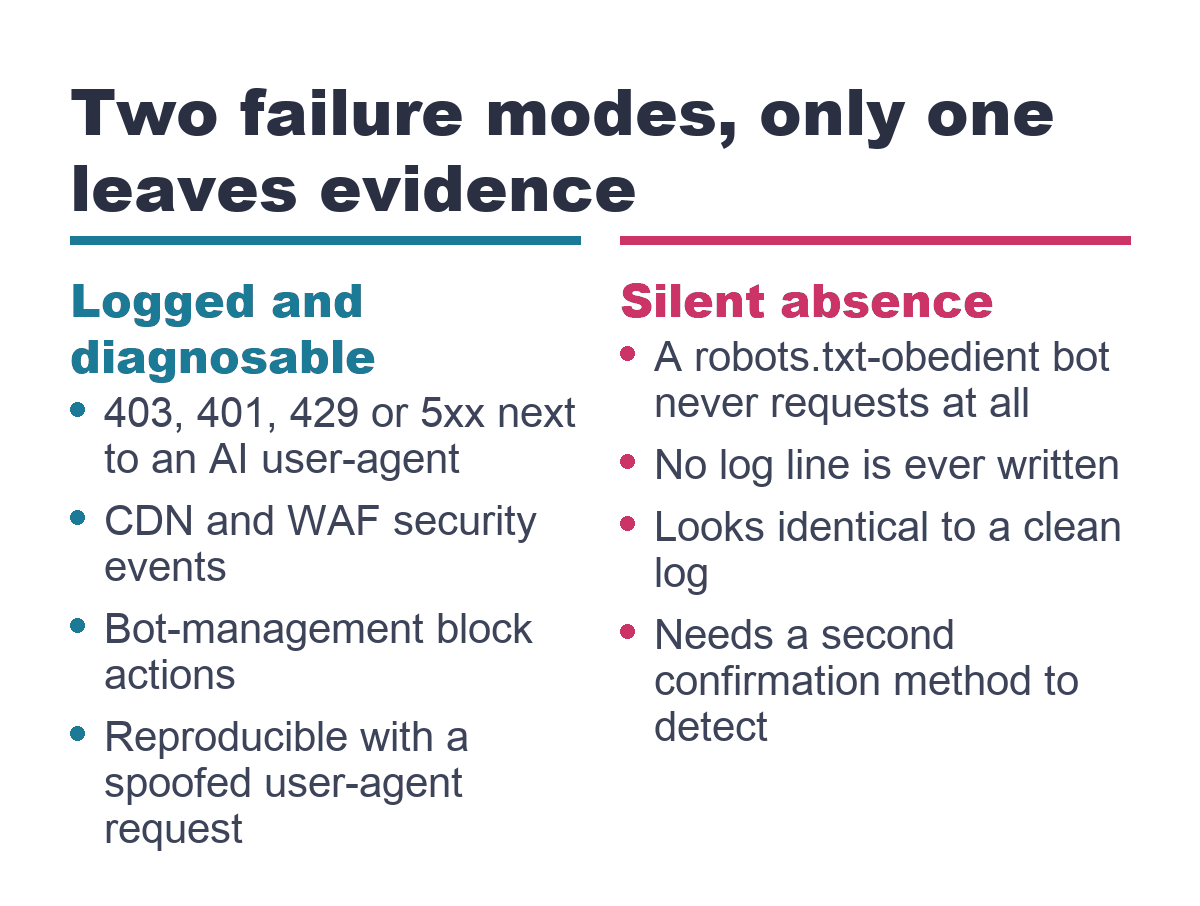
Robots.txt compliance is voluntary. It is enforced by nothing except the crawler operator’s own conduct, which makes it a request rather than a technical barrier. A bot that respects a disallow rule creates no request and no record. That matters because a clean log is not proof that nothing tried. You have two different failure modes to track: a logged, diagnosable block and a silent absence that requires a second confirmation method.
Where failed AI crawls actually show up
In practice, failed AI crawls leave evidence in three places: server and error logs, CDN or WAF security event logs, and AI-crawler-specific dashboards where the platform provides one. None of them tells the whole story on its own.
Server and error logs are the oldest source. When a crawler requests a page and the server refuses it, the log line usually shows the HTTP status code, the URI the bot asked for, the bot’s user agent, the IP address, and the timestamp. The user agent is the text string a bot sends to identify itself, such as GPTBot or ClaudeBot. The status codes that matter for a blocked crawl are 403, 401, 429, and 5xx. A 403 means the server or WAF explicitly refused the identified client. A 401 means authentication was required, which is rare for public content. A 429 means the bot was rate limited. A 5xx means a server error, which may be a real outage or a security layer masking a block as a server failure. This is standard HTTP semantics, not a proprietary measurement.
If you use Cloudflare, the Security Events dashboard is the next place to look. Security, then Events logs every request a Cloudflare security product acted on. It records the action taken, such as Block, Challenge, Managed Challenge, Log, Skip, or Allow, along with source IP, ASN, country, host, URI, user agent, and ray ID. The ASN is the network identifier for the visitor’s internet carrier. The URI is the specific path requested. The ray ID is a per-request identifier Cloudflare assigns.
Cloudflare also lets you filter Security Events, or build rules, by verified-bot category. A verified bot is one that proves its identity via a cryptographic Web Bot Auth signature, a published stable IP list, or reverse DNS, and behaves non-abusively by obeying robots.txt and keeping reasonable request rates. This expression isolates AI and SEO crawler traffic specifically:
(cf.verified_bot_category eq "AI Crawler") or (cf.verified_bot_category eq "Search Engine Optimization")
Use that filter when a raw user-agent search is too noisy. The source for verified-bot categories is Cloudflare’s verified bots documentation.
Cloudflare’s AI Crawl Control product has a dedicated Crawlers table. It shows the total count of allowed versus unsuccessful requests per AI crawler, with a trend chart, filterable by crawler name, operator, and category. The caveat matters here. Cloudflare’s own documentation notes that unsuccessful requests may result from various sources beyond AI Crawl Control’s block action, including other rules or response errors. An unsuccessful count in that table does not prove one specific cause. See the AI Crawl Control management documentation for the exact table behavior.
This section covers log reading. If your goal is to build a recurring dashboard around this data, the post on tracking AI crawler activity covers that habit. This post is the one-time diagnostic gut-check for a specific suspicion.
The failure you can’t see, and how to catch it anyway
The single most damaging failure is the compliant bot that read your robots.txt, respected a Disallow rule, and never issued the request. Since no request occurred, no server log line, CDN record, or security event exists. This is silent absence, not a logged block. The only way to suspect it is to compare the bots you expected against the requests you actually received.
Start by checking which AI crawlers operate under separate names and policies. OpenAI operates three separate crawlers with three separate purposes: GPTBot for training, OAI-SearchBot for live ChatGPT search results, and ChatGPT-User for content fetched live in response to a specific user prompt. GPTBot and OAI-SearchBot respect robots.txt. OpenAI publishes separate IP-range feeds for each at openai.com/gptbot.json, openai.com/searchbot.json, and openai.com/chatgpt-user.json, according to OpenAI’s bot documentation.
Anthropic does not publish stable IP ranges for ClaudeBot. Verification instead relies on a reverse DNS and forward DNS round trip: the requesting IP reverse-resolves to an anthropic.com hostname, and that hostname forward-resolves back to the same IP. Anthropic warns that IP-blocking its crawlers is unreliable because it can also block the bot from reading your robots.txt file, defeating the opt-out. Search Engine Land reports on that limitation directly.
Perplexity publishes IP ranges for its two crawlers at perplexity.com/perplexitybot.json and perplexity.com/perplexity-user.json. The first is its indexing bot, which obeys robots.txt. The second is its live user-triggered agent, which Perplexity classifies as an agent rather than a bot and therefore does not consider obligated to honor robots.txt. The Perplexity crawler documentation lays out that distinction.
Knowing those names lets you search your logs intelligently. Do not conclude “never tried” from one signal alone. If you see no entries for GPTBot, check whether your robots.txt contains a Disallow rule for that bot’s user agent. If it does, silence is expected compliance. If it does not, the absence could still be a DNS-level block, a network firewall below the CDN or WAF layer, or simply that the bot has not crawled you yet. Compare your logs against a current list of major AI crawler user agents. New bots appear regularly, and a bot you were not searching for can remain invisible for no other reason.
A second invisible failure comes from JavaScript challenges. These are browser tests that run in the background of a normal browser session. A real browser passes without any visible interaction. A crawler that does not run a full browser engine fails the check and never reaches the page content. A human checking the site in a browser sees everything working, because the human’s browser passes the same test that silently stops the bot.
What’s actually causing the blocks
Several mechanisms produce a blocked AI crawl, and many of them run without the site owner deliberately choosing a block setting.
Cloudflare’s Bot Fight Mode, part of the free-tier bot tools, issues computationally expensive JavaScript challenges to traffic matching known bot patterns. It can affect AI crawler traffic. Cloudflare’s documentation points to a separate Block AI bots toggle as the intended control surface for that instead. Bot Fight Mode actions appear in Security > Analytics with Bot Fight Mode in the Service field. Cloudflare warns it “may challenge API or mobile app traffic,” which means it is not surgical.
Cloudflare’s Block AI bots control blocks a documented list of named AI crawlers, including Amazonbot, Applebot, Bytespider, ClaudeBot, and GPTBot, among others, plus any bot Cloudflare has verified or classified as an AI crawler. That list comes from Cloudflare’s bot concepts page.
When you block a crawler through Cloudflare’s AI Crawl Control UI, the product writes a WAF custom rule. You choose the block response: 403 Forbidden or 402 Payment Required, plus a custom message shown to the bot. That is still a configuration action. The post on website blocking AI crawlers covers the mechanics of changing WAF rules, Bot Fight Mode, and the Block AI bots toggle.
Outside Cloudflare, the same patterns appear in hosting accounts. WAF managed rulesets trigger on request patterns. Bot-fight-mode defaults are on by default on some hosting and CDN plans. Rate limiting produces 429s when a crawler’s request cadence crosses a threshold. Hosting-provider-level bot filters are bundled into security add-ons the site owner may not have configured directly. This is reasoned synthesis of how these mechanisms interact, not a single citable statistic. The underlying rule model is visible in Cloudflare’s custom rules documentation.
One future default is also worth knowing. Starting September 15, 2026, Cloudflare will block Training and Agent category AI crawlers by default on ad-supported pages, while Search category crawlers remain allowed by default. This is a policy-category system. Help Net Security reports on that policy shift.
How to verify a block yourself
The fastest diagnostic is a curl request with a spoofed AI bot user agent. For the full method, including how to test from multiple locations and interpret the results, see checking which AI bots can access your website.
Without server or CDN access, the faster path is the free AI Agent Readiness Check, which tests your site from the outside the way an agent does and reports what gets blocked.
The diagnostic decision tree
Do you have server or CDN access logs?
- Yes: Search logs for known AI bot user-agent strings (GPTBot, ClaudeBot, PerplexityBot, and others).
- Found entries with 403 or 401: Something explicitly refused the request. Next: Check Cloudflare Security Events, or your host’s WAF log, for the same timestamp and user agent to identify which rule or product fired.
- Found entries with 429: Rate limiting, not a hard block. Next: Check the rate-limit rule thresholds against the bot’s request cadence.
- Found entries with 5xx: Could be an incidental outage, or a WAF masking a block as a server error. Next: Cross-check the WAF or Security Events log for the same request. If no security event fired, treat it as a real server issue, not a bot block.
- Found entries with 200: That bot got through for those requests. Not a failure.
- No entries at all for a given bot: Ask: Is this a bot that obeys robots.txt? Check your robots.txt for a Disallow rule matching that bot’s user agent.
- Yes, disallowed: Expected silent absence. Not a failure. It is compliance. This is the case most readers have not considered.
- No disallow rule, and still zero requests: Possible causes: a DNS-level block, a network or firewall block below the CDN or WAF layer, or the bot simply has not crawled you yet. Next: Corroborate with a curl request using that bot’s user agent from your own machine. A normal 200 means the bot’s absence is not your server configuration. Look upstream, or accept that it may not have crawled yet.
- No log access, such as basic shared hosting: Use the curl-with-spoofed-user-agent test as your primary diagnostic. If your host provides any WAF or security panel, check there first. Ask your host directly whether bot protection is enabled by default. Many hosting-bundled security products block bots without an owner-facing toggle.
Wherever a silent absence is suspected: Compare your logs against a current list of major AI crawler user agents. This list changes, and new bots appear regularly. Absence of evidence for a bot you were not checking for is not evidence it did not try. You may simply not know what to search for.
What to do with what you find
If you find a 404 instead of a block, that is a missing or moved page problem, not an AI crawler access problem. If you have confirmed a block, the next step is a configuration change. The post on website blocking AI crawlers covers the mechanics of changing WAF rules, Bot Fight Mode, and the Block AI bots toggle. This post stops at diagnosis.
FAQ
Does a 403 in my logs mean an AI bot definitely got blocked?
A 403 means the server or WAF explicitly refused that specific request, so something blocked it at that moment. The log alone may not tell you which rule or product fired. Cross-check the same timestamp and user agent in Cloudflare Security Events or your host’s WAF log to identify the control that acted.
Why don’t I see ClaudeBot or GPTBot anywhere in my logs, blocked or not?
An absent bot is not automatically a failed bot. If your robots.txt disallows that bot’s user agent, the crawler may have read the instruction and never requested the page. If there is no disallow rule and no requests, possible causes are a DNS or firewall block upstream, or the bot has not crawled you yet. For GPTBot specifically, remember OpenAI operates three crawlers under three different names and IP feeds.
Can I trust my hosting provider’s default security settings not to be silently blocking AI bots?
No. Hosting-bundled bot filters and plan defaults can block bot traffic without an owner-facing toggle. Cloudflare’s Bot Fight Mode is a clear example: it can challenge API or mobile app traffic and is not surgical. If you do not have log access, ask the host directly whether bot protection is enabled by default.
Is a JavaScript challenge the same as a block?
It is not a status-code block, but it can produce the same outcome for a bot. A real browser passes the challenge silently. A crawler that does not run a full browser engine fails and never reaches the content. To a human checking the site, everything looks normal, which is why this failure is especially easy to miss.
Does seeing a bot in my logs with a 200 status mean it’s actually reading my content?
No. A 200 only means the server returned the requested resource successfully. It does not mean the bot rendered the page, executed JavaScript, or indexed the content. If the response contained a JavaScript challenge, a browser may have passed silently while a non-rendering crawler stalled.
Once you know a block exists, the free AI Agent Readiness Check shows you exactly what an agent sees when it tries to reach your content.