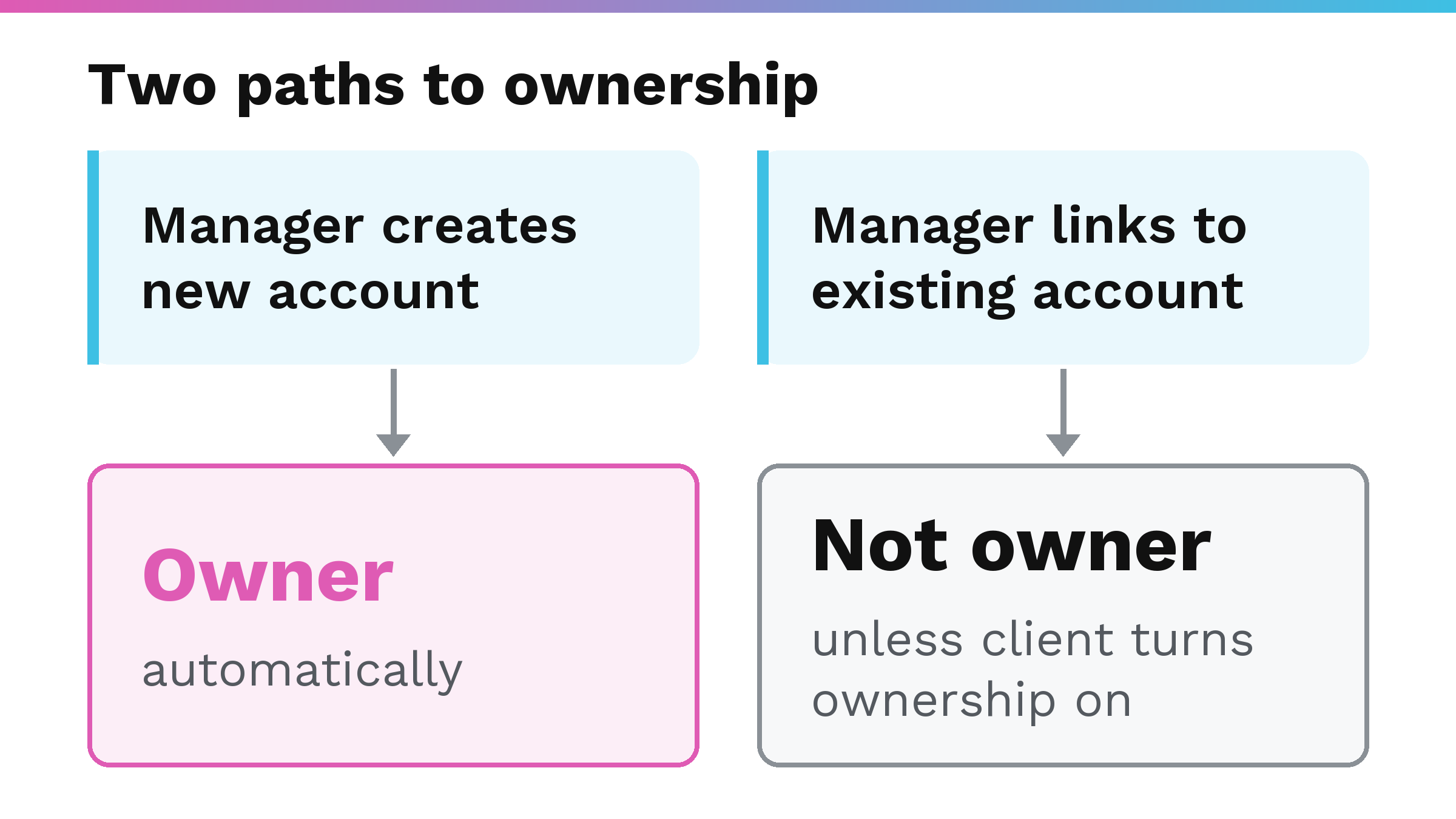
If you ask who owns your Google Ads account, Google’s help pages say that the owner, where there is one, is a manager account, which is the account an agency uses to run client campaigns. That owner has full administrative and data access, while your account still owns its data. An agency that creates the account in its own manager account becomes the owner automatically; one that links to an account you already had does not, unless your account turns ownership on. You can see the owner by going to Admin, then Access and security, and selecting Managers, which has an Owner column. An admin on your account can always unlink a manager.
What does “owner” mean in Google Ads?
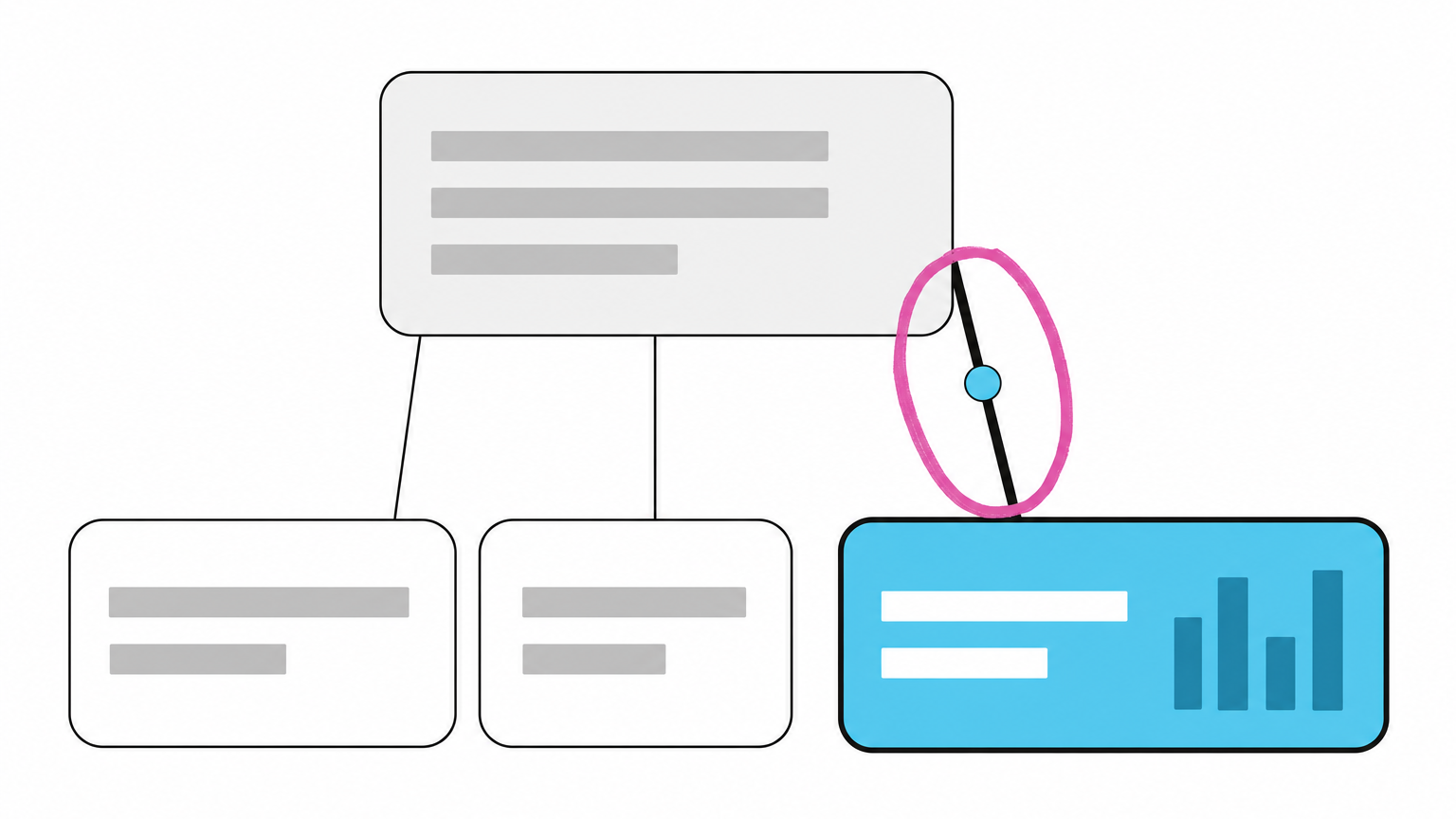
A manager account can be the owner of a client account. That is Google’s definition, drawn from its page on ownership of client accounts. Owners have “full administrative access and data access privileges,” but they “do not take data ownership or administrative rights away from client accounts.” In Google’s words, “The client account still owns its data and has the ability to remove ownership access by unlinking.” An admin on your account unlinks the manager account.
A client account can only have one owner at a time. Ownership also travels upward: if a manager account owns your account, every manager account above that one also has ownership. Google recommends that a manager be made owner “if and only if the manager account requires these privileges.”
When you hire, replace, or check on an agency, confirm whether its manager account is the owner, and ensure someone at your company holds Admin access. Owner means a manager account’s privileges on your account, not ownership of your data.
How does an agency become the owner of your account?
If the agency creates your account inside its own manager account, the manager automatically becomes the owner. If the agency links to an existing account you already had, ownership is not the default. Your account must turn ownership on for that manager.
Ownership can only be turned on by someone who already has administrative access to your account. It cannot be turned on if another manager already owns the account.
When a manager account links to an existing Google Ads account, the account stays as it was. Account history stays intact, you reach it with the same sign-in and the same permissions as before, and your original users keep access to billing. Invoicing and payment methods do not change unless consolidated billing is set up.
How do you check who owns your Google Ads account?
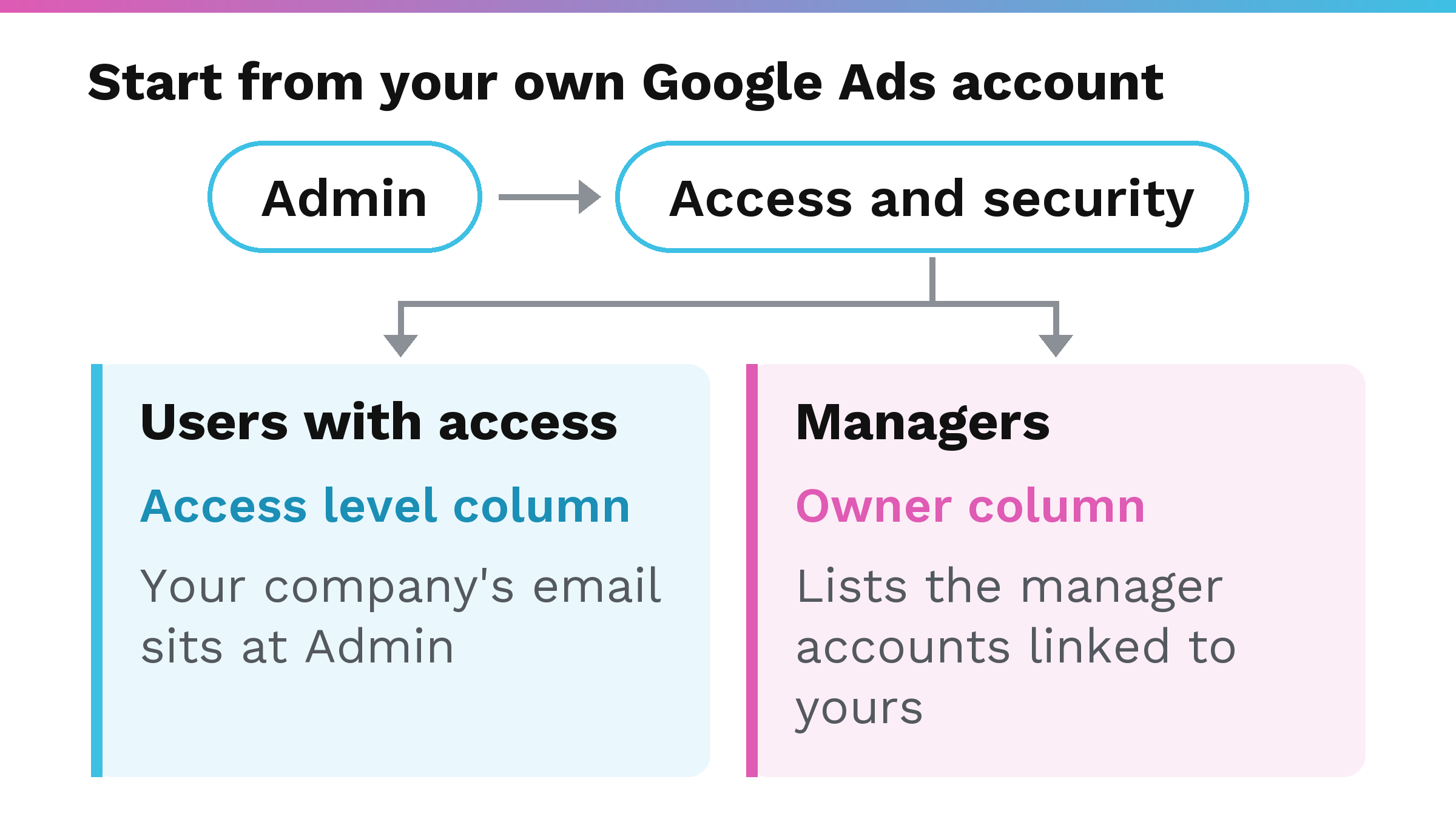
Start from your own Google Ads account. Go to Admin, then Access and security. (The steps are covered in Google’s page on managing access to your account.) That page lists users with access. The Access level column shows each user’s level: Email-only, Billing, Read-only, Standard, Admin. Check that your company’s email sits at Admin.
Still on the Access and security page, look along the top of the page and select Managers. That sub-page lists the manager accounts linked to yours. It has an Owner column and an Actions column.
Read-only, Standard, and Admin users can view users, managers, and product links, and Email-only and Billing users cannot. If your own email does not have admin access, Google’s instruction is to “log in with an admin account or ask an existing admin to grant your email admin privileges or perform the unlinking.”
What can an owner do that a linked agency cannot?
Without ownership, users with admin access to a linked manager account can receive notification emails and manage your campaigns.
Google lists what admin users on an owner manager account can do:
- Invite users with administrative access to the client account
- Remove users from the client account
- Grant or revoke administrative access for users on the client account
- Accept and decline link requests from other managers to the client account
- Turn off ownership
- Transfer ownership to another manager account
- Unlink other managers from the client account
- Turn on remarketing list sharing in the client account
- Adjust security settings on the client account
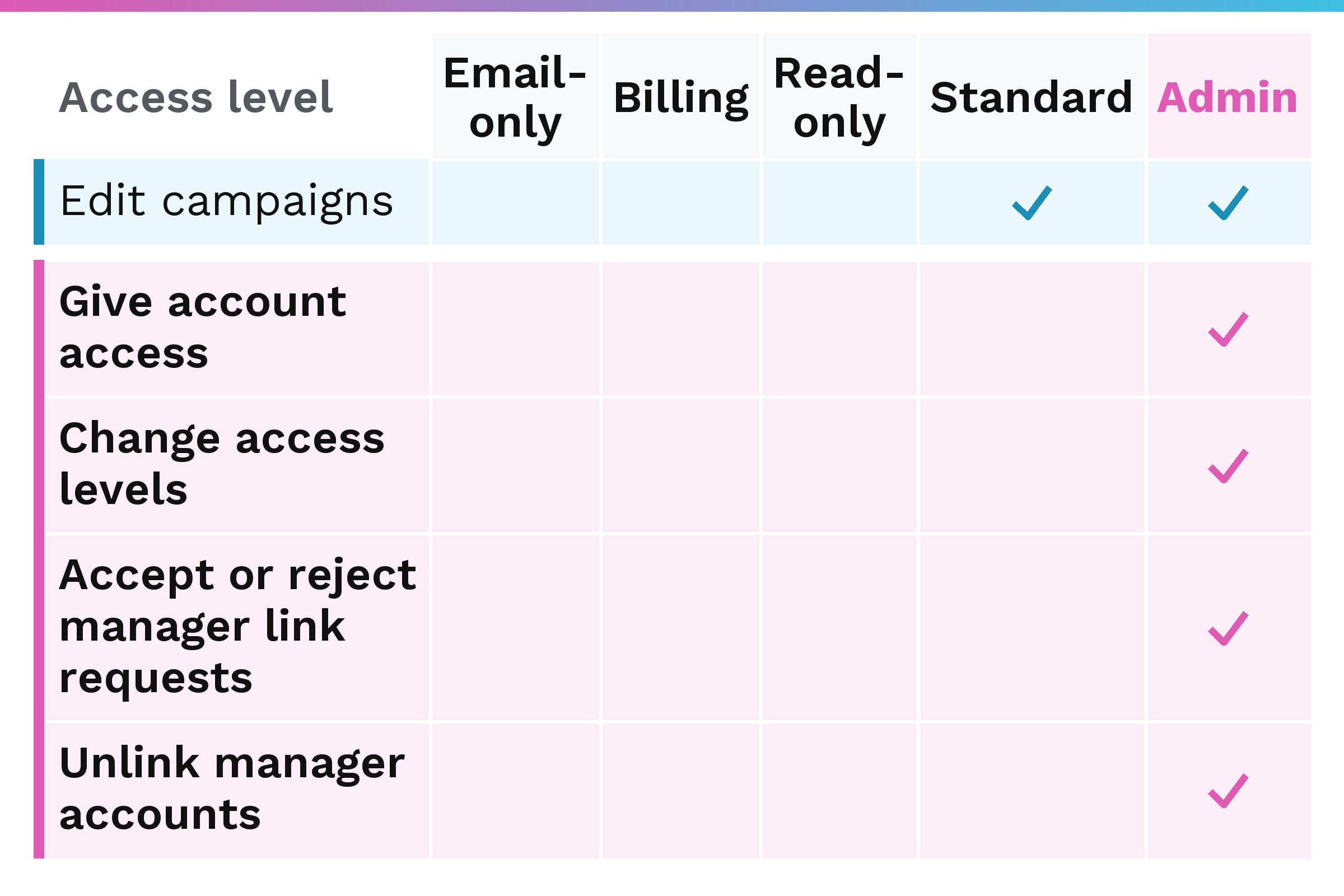
Google’s access levels page lists what only Admin can do. Only Admin can give account access, change access levels, cancel invitations, accept or reject manager link requests, unlink manager accounts, and review authentication methods and last login times. Standard and Admin can edit campaigns. Read-only users cannot edit campaigns.
Google states that the client account still owns its data. An admin on your account can always remove the owner by unlinking.
Can you remove an agency from your Google Ads account?
Yes. An admin on your account can always unlink a manager account, including one that is the owner. Unlinking ends the connection between your account and the manager account. Users of your account cannot transfer ownership or turn it off without unlinking.
These are the steps from your own account, from Google’s guide on unlinking accounts:
- Go to Access and security within the Admin menu.
- Select the Managers sub-page.
- Locate the manager account you want to unlink, and select Remove access in the Actions column.
- A dialogue will appear with a preview of how your account will be affected by the unlinking action.
- After you have reviewed the changes, and if you approve, select Unlink.
After the owner manager is unlinked, your account can turn on ownership for a different manager, and it can be linked to a new manager account. The agency can also unlink your account from its own side.
What happens to your account when you unlink an agency?
Google’s page on what happens when you unlink covers campaign history and features, shared remarketing lists, cross-account conversion tracking, and monthly invoicing.
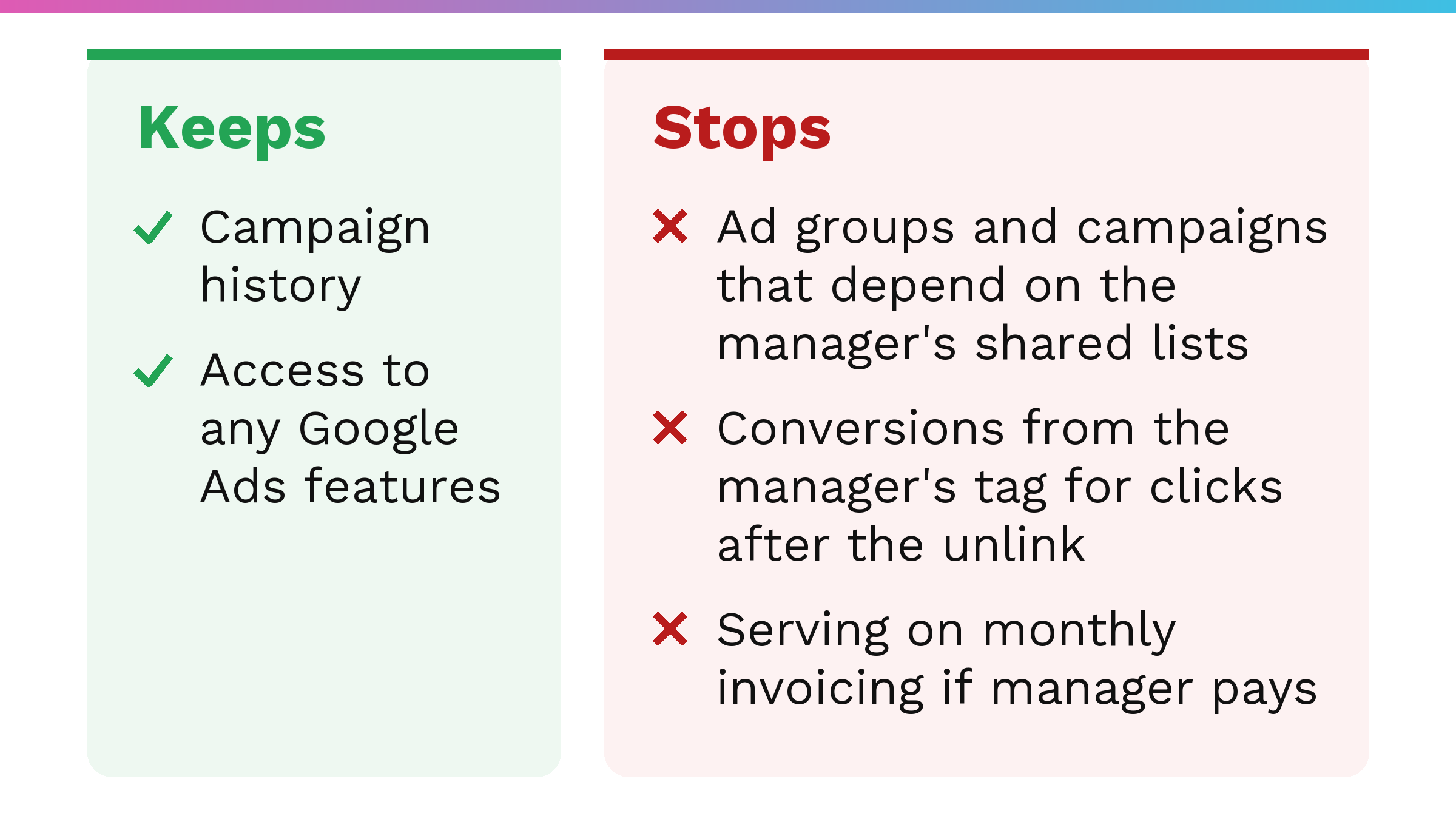
First, your account “won’t lose its own account campaign history or access to any Google Ads features.”
Second, if your account was using the manager’s remarketing tag or any shared remarketing lists, the lists that rely on the shared tag stop populating in your account. Your account also loses access to any of the manager’s shared lists. Any ad groups that target those lists and any campaigns that exclude those lists stop running.
Third, if your account was using the manager’s cross-account conversion tracking tag, that tag stops recording conversions for clicks after the unlink. It keeps recording conversions for clicks before the unlink for the conversion window, the period after a click during which a conversion is still counted, which Google gives as “typically 30 days.” If the account had its own conversion tracking tag installed on the site before, that tag resumes tracking conversions unless it is replaced by another manager account’s cross-account conversion tracking tag.
Fourth, if your account is on monthly invoicing and the paying manager is being unlinked, Google warns that “the account will stop serving after you unlink it.” To keep ads running, change billing before unlinking and create the new setup under a manager account you’ll link to afterward.
What do Google’s pages on ownership and unlinking not tell you?
Every unlink and access change runs through an Admin login, and Google’s pages on ownership and unlinking do not cover a business with no login on its own account. This post does not offer a route for that case.
The pages cover permissions. They say nothing about what happens if an agency will not grant the access you believe you should have, and neither does this post.
These are Google’s help pages as they read in October 2026. Google can change them. If you are making a decision that depends on the details, read the current wording on the linked pages.
What should you ask an agency before you give it access?
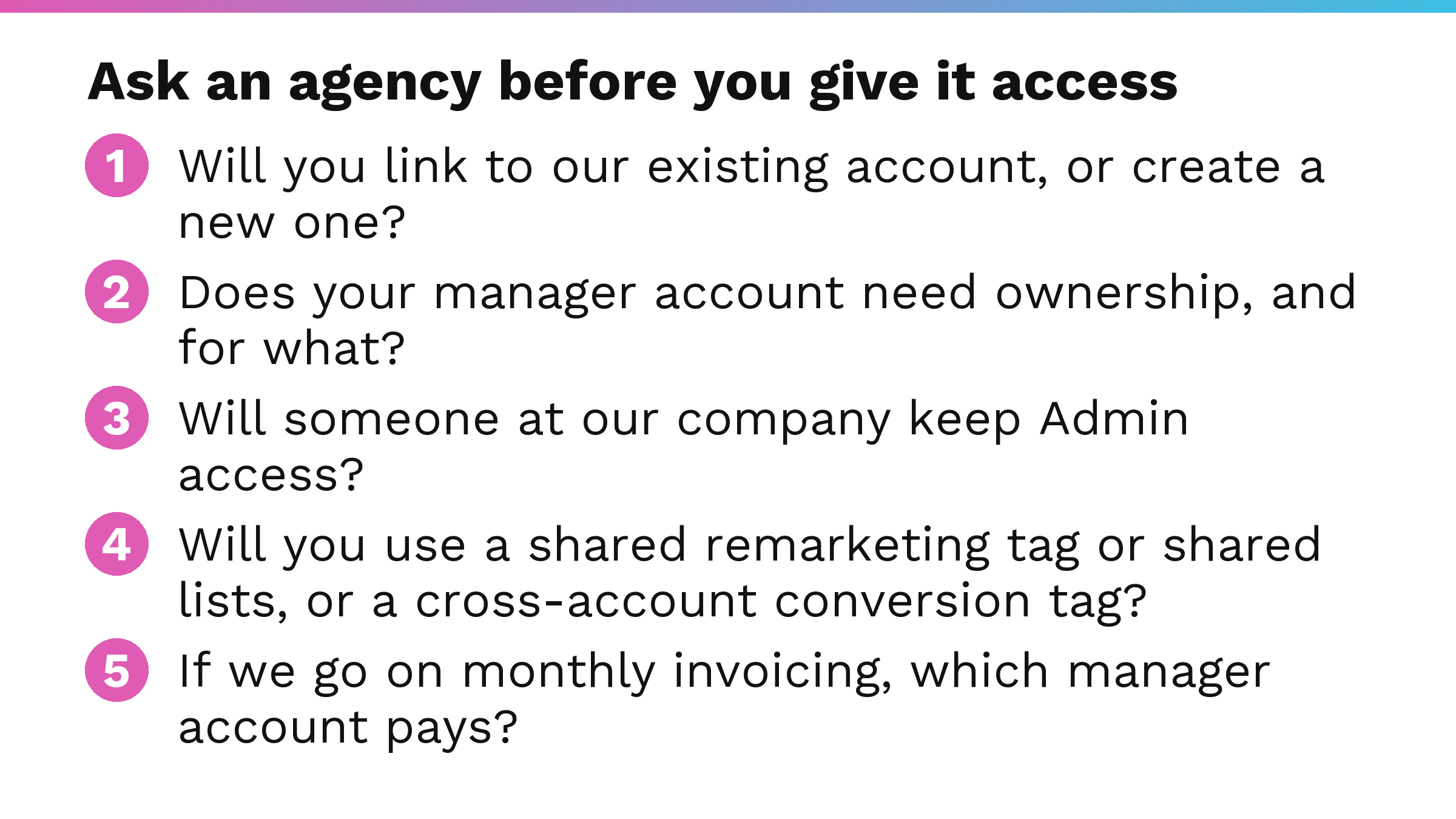
- Will you link to our existing account, or create a new one in your manager account?
An agency that creates the account is automatically the owner; one that links to an existing account is not, unless your account later turns ownership on. - Does your manager account need ownership, and for what?
Google recommends ownership only when the manager requires those privileges, such as adding users, removing users, or adjusting security settings. - Will someone at our company keep Admin access, and will there be more than one admin?
Admin access is what lets you unlink the agency later, and Google notes that having more than one administrator may help ensure uninterrupted tag management. - Will you use a shared remarketing tag or shared lists, or a cross-account conversion tag, on our account?
If you unlink, ad groups and campaigns that depend on the manager’s shared lists stop running, and the manager’s conversion tag stops recording conversions for clicks after the unlink. - If we go on monthly invoicing, which manager account pays?
If the paying manager is the one you later unlink, Google states the account will stop serving after the unlink.
I work inside my clients’ Google Ads accounts, and my page on how I work with clients explains the setup step by step. I offer B2B PPC agency services for industrial and manufacturing businesses.
FAQ
Who owns my Google Ads account if my agency set it up?
In Google’s terms, if the agency created your account inside its own manager account, that manager account is the owner. That grants the agency full administrative and data access privileges, but Google states that the client account still owns its data. An admin on your account can always unlink the agency’s manager account.
Does my agency own my Google Ads data?
As Google defines it, an owner manager account gets full administrative and data access privileges without taking data ownership or administrative rights away from your account. Google states that “The client account still owns its data and has the ability to remove ownership access by unlinking.” An admin on your account can unlink the owner.
Can I remove my agency from my Google Ads account?
Yes. An admin on your account can always unlink the agency, including an agency whose manager account is the owner. After unlinking, the agency’s manager account can no longer access your account.
What access level do I need to unlink an agency?
You must be logged in with an email that has Admin access to your Google Ads account. If your own email lacks admin access, you need to log in with an admin account or ask an existing admin to grant your email admin privileges.
Will I lose my campaign history if I unlink my agency?
No. Your account “won’t lose its own account campaign history or access to any Google Ads features.” Two things do stop: ad groups and campaigns tied to the manager’s shared remarketing lists stop running, and the manager’s cross-account conversion tag stops recording conversions for clicks after the unlink.